Manage Projects
 Admin User
Named projects organize all of the related project data into a database structure. This named project structure includes project level setup options as well as all of the related tables used to maintain the project specific calendar structure, rate structure, resource structure, codes, time phased values, documents, logs, and forms. You also have the option of using global calendar, rate, and resource structures or global user defined code structures when you create a new project. These global structures are shared with other projects.
Once you create a new project, other users permitted to access the project can begin to build out the project's work breakdown structure (WBS), define the project's organization structure, identify control account accounts, create work packages, determine resource requirements, and create time phased values.
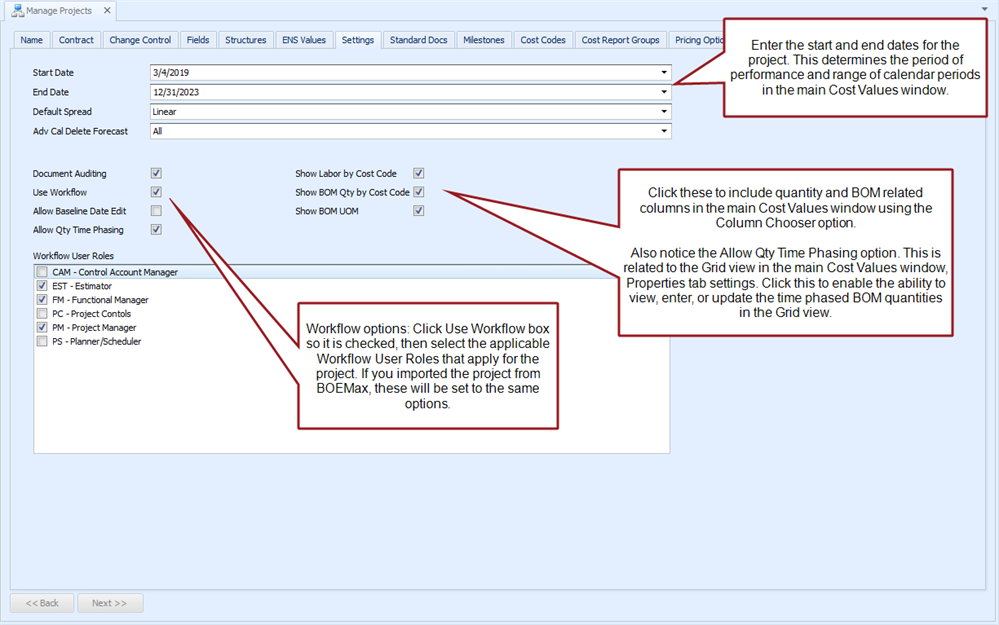
As an administrative user, you may need to maintain the project level setup options such as updating the contract information, enabling the workflow process, setting up standard documents, adding an alternate rate class, or assigning user defined codes and fields. User defined codes and fields can be assigned at the WBS/control account or work package level. These user defined codes and fields display in the main EVMax window.
 Implementation Tips
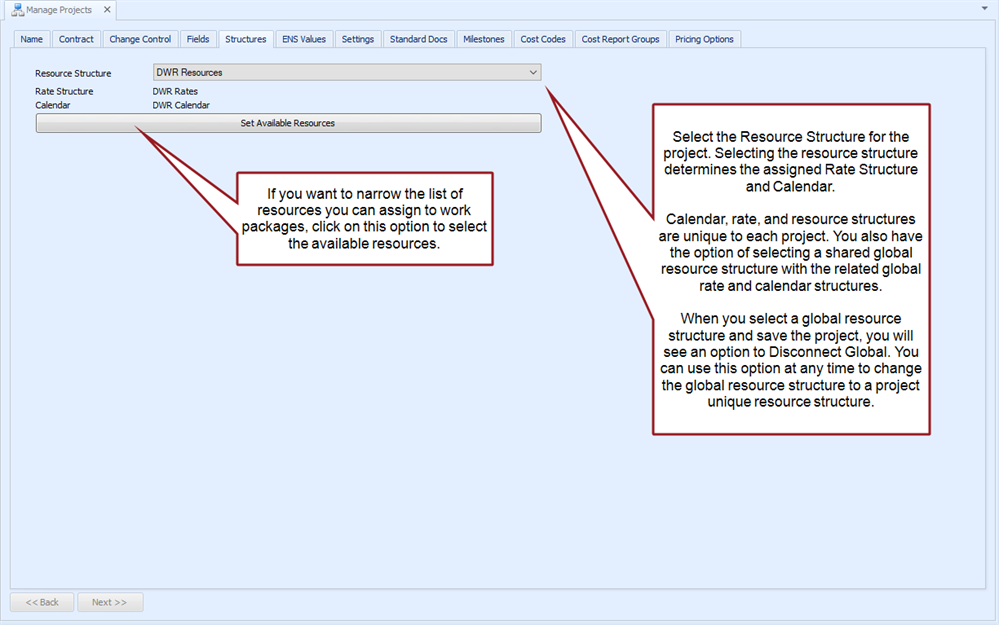
- Core project data such as results, codes, calendar structures, rate structures, and resource structures must be defined before you create a new project. See Setup Project Data. Code, calendar, rate, and resource structures are unique to each project or they are global structures projects can share.
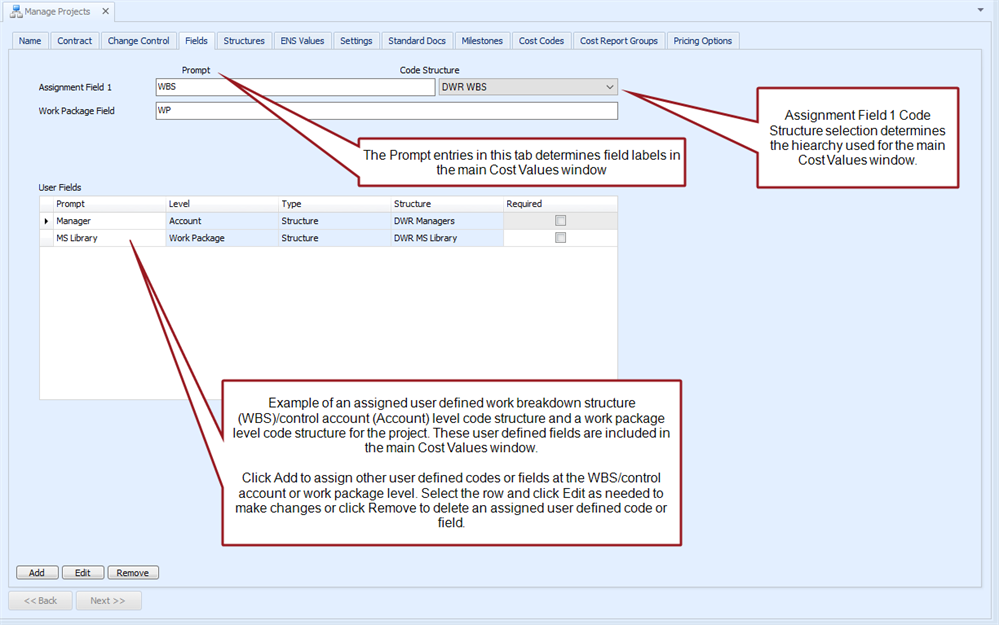
- Recommend using a single assignment field when you create a new project (Manage Projects tab window, Fields tab). Typically the project's work breakdown structure (WBS) is assigned to this field. This assignment determines the primary code structure hierarchy for the main EVMax window using a single key field. If you need another attribute field for the data, create a user defined code or field. Do not use the second assignment field.
- Create and maintain a template project as a base for creating new projects. Assign the templates created for core data to this template project. This includes the template for the calendar structure, rate structure, and resource structure or create global structures projects can share. This can also include templates for common code structures or create global code structures useful for integrating data with other systems, sorting or selecting data, or reporting. Template structures can all be renamed as part of the copy project process to quickly create a new base project.
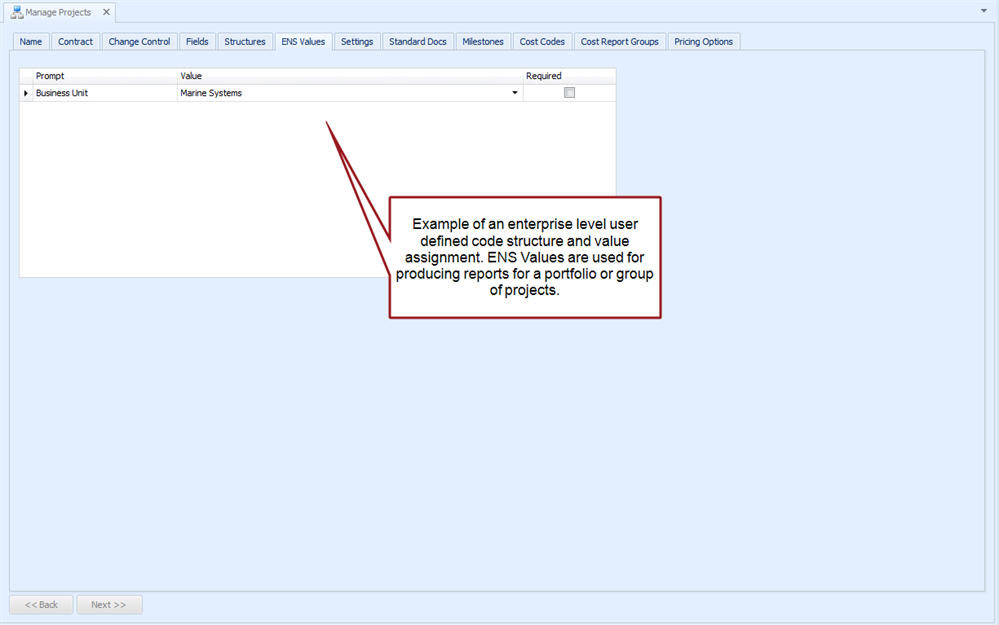
- When you have added user defined nodes or levels to the Enterprise Nodal Structure (ENS), remember that any new project you create is assigned to the default Enterprise level. Use the Enterprise Nodal Structure tab window (Home > ENS) to select the new project row and drag it to the applicable node.
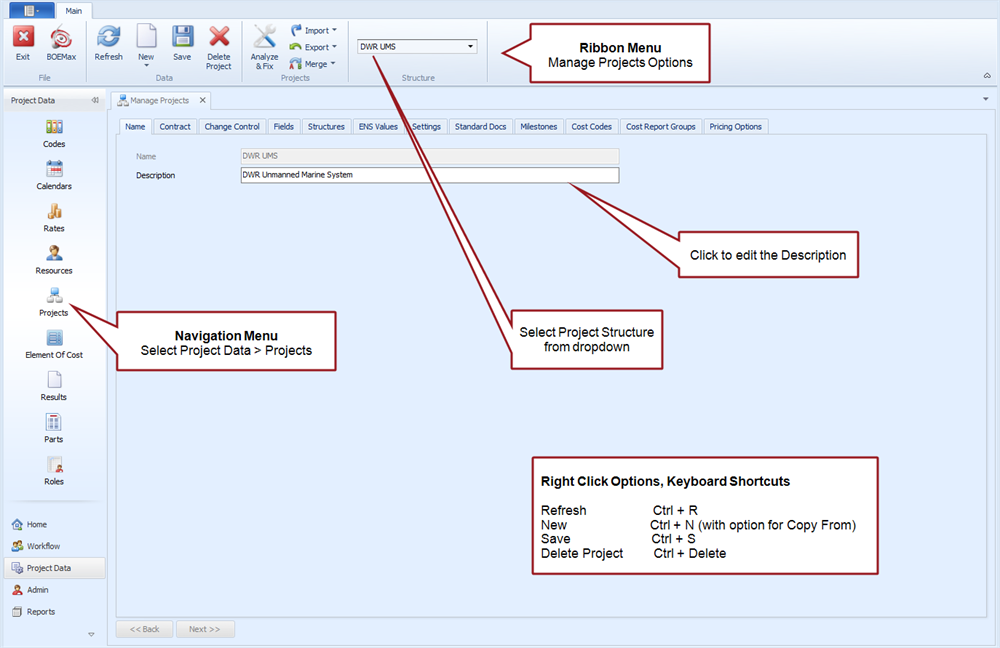
Manage Projects Tab
Main tab menu options
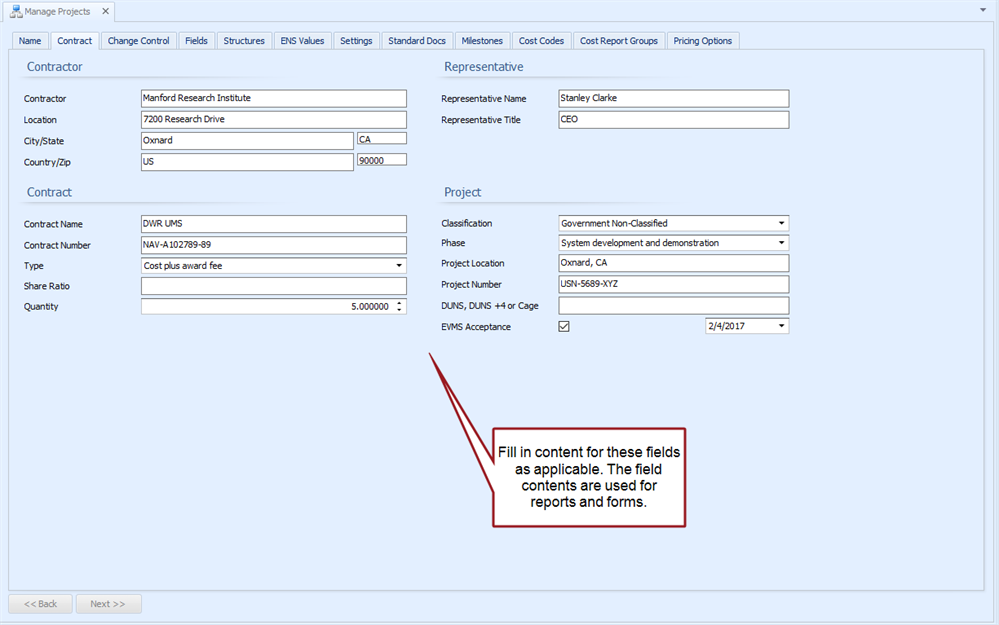
Contract tab
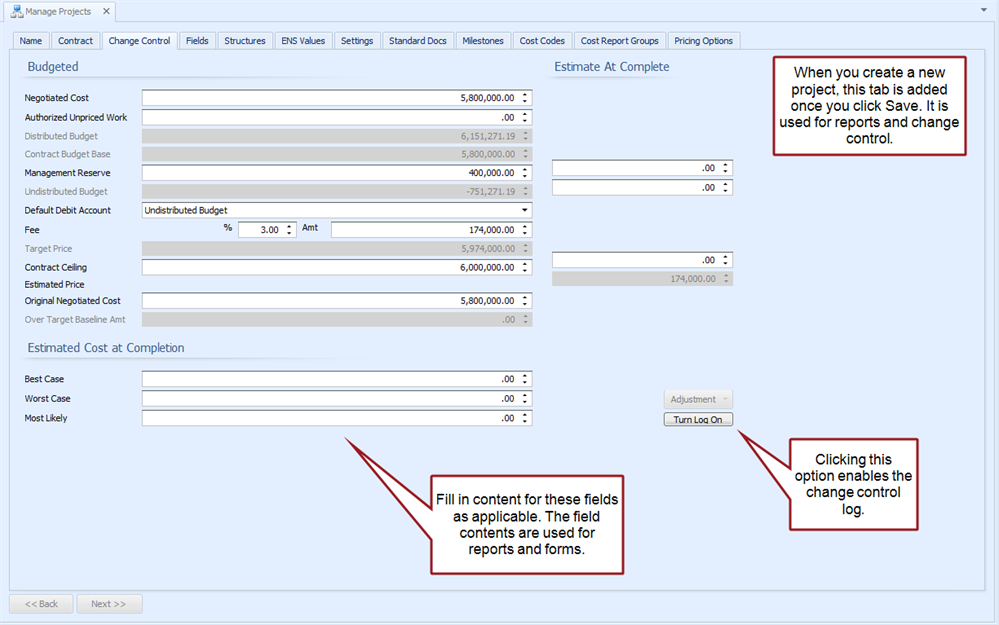
Change Control tab
Fields tab
Structures tab
ENS Values tab
Settings tab
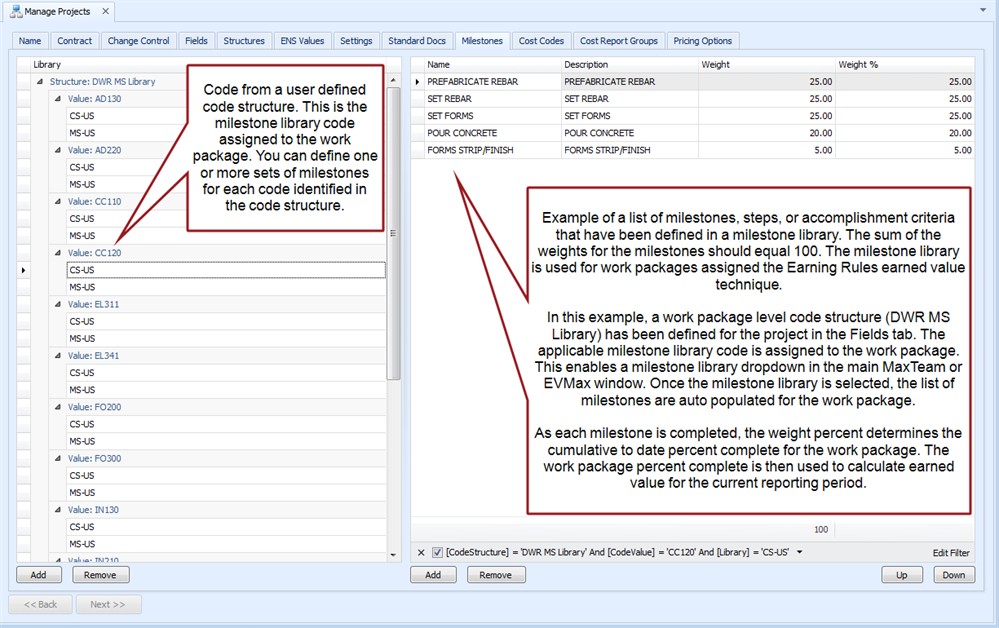
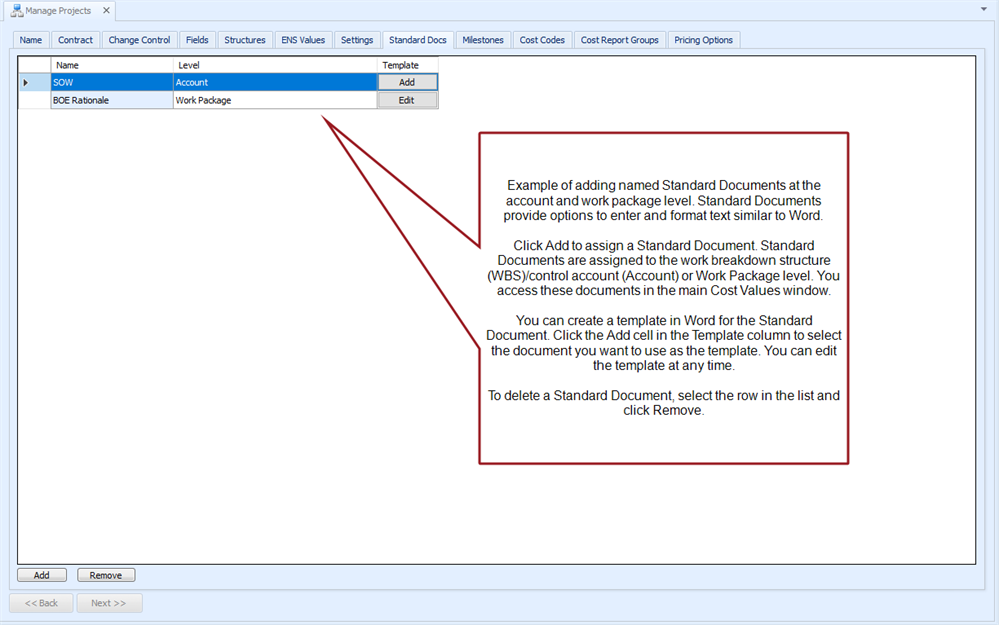
Standard Docs tab
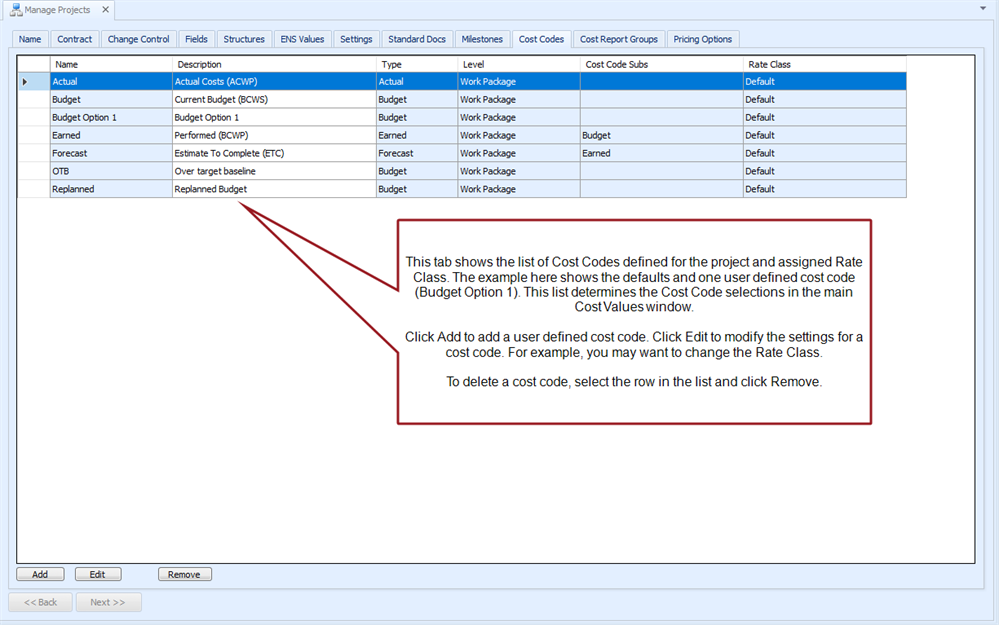
Cost Codes tab
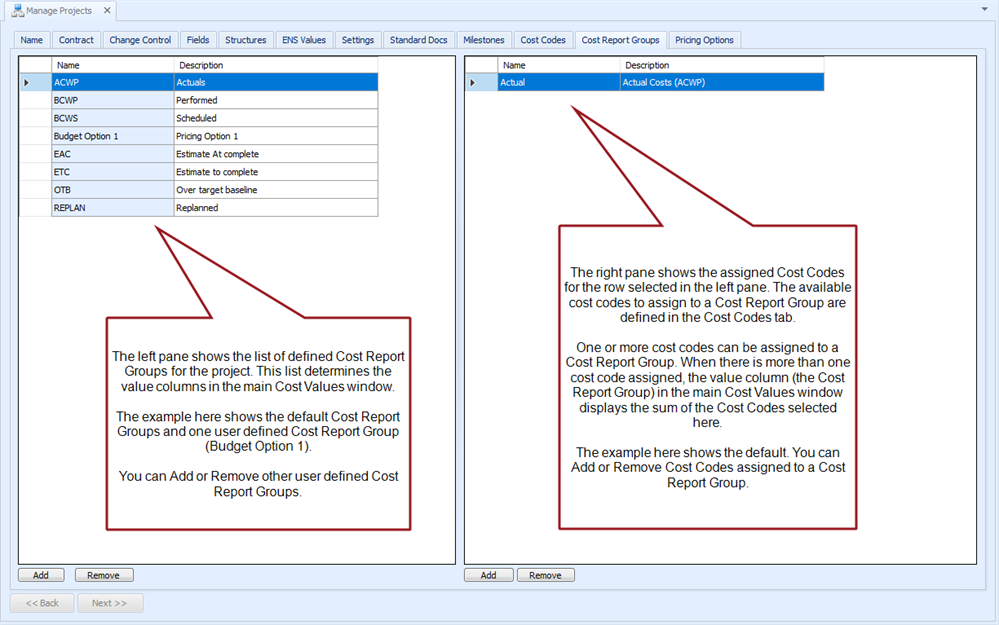
Cost Report Groups tab
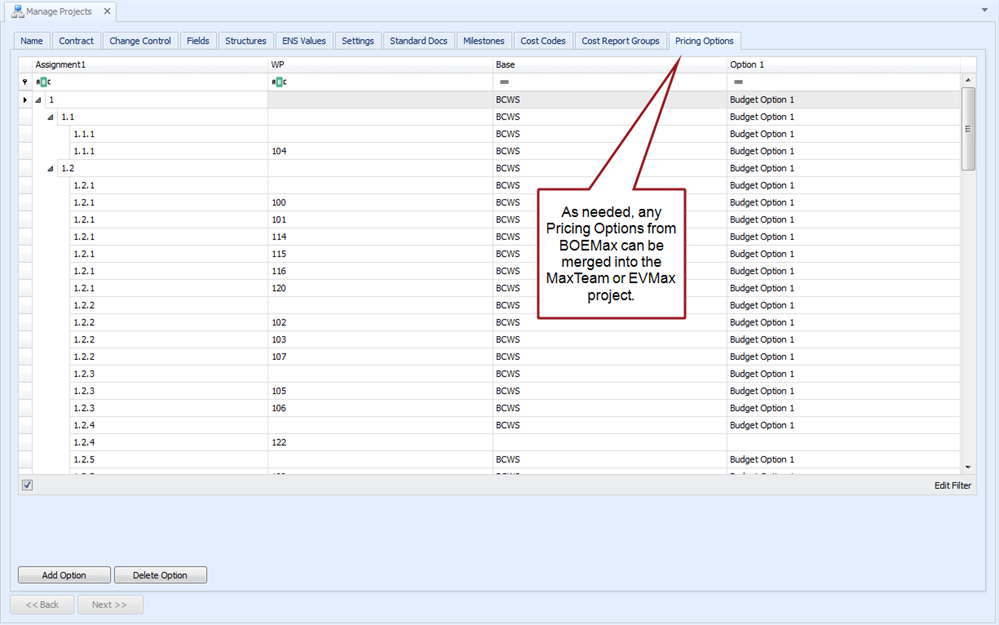
Pricing Options tab